How to Install Vocal Presets in GarageBand (Works Like Logic Pro)
Installing vocal presets in GarageBand is the same process as Logic Pro: drop your patches into Audio Music Apps → Patches → Audio, restart GarageBand,...

Key Takeaways
- Drop vocal presets into Music → Audio Music Apps → Patches → Audio folder.
- Restart GarageBand after adding presets so they appear in your Library panel.
- GarageBand uses the same preset system as Logic Pro with fewer features.
- Press Y to open Library and find your presets under User Patches.
- Only GarageBand/Logic preset formats work — other DAW presets won't load.
Installing vocal presets in GarageBand is actually really simple — and it works the same way as Logic Pro.
GarageBand can’t load every type of preset or every plugin parameter that Logic can, but the installation process is identical: drop your vocal presets into GarageBand’s Audio Patches folder, restart GarageBand, and they’ll appear in your Library.
Quick answer
Mac: Music → Audio Music Apps → Patches → Audio → drag presets in → restart GarageBand → load from Library (Y).
Need presets to install? The free GarageBand vocal presets come as .patch files that drop straight into that folder.
Video walkthrough
Part of the Vocal Presets & Processing series — For the full picture, read my guide to finding and making vocal presets.
Step 1: Go to the GarageBand / Logic presets folder
GarageBand stores user patches in the same folder Logic Pro uses.
On your Mac, navigate to:
Users → [Your Username] → Music → Audio Music Apps → Patches → Audio
This is where your custom patches and vocal presets belong. GarageBand reads anything you add here.
Step 2: Drag and drop your vocal presets
Inside the Audio folder, drag in your vocal preset files or folders.
You can organize however you want. For example:
- Vocal Presets
- Pop Vocals
- Rap Chains
- Vocal Magic
- Artist-Style Presets
Whatever you put here will appear inside GarageBand under your user patches.
Step 3: Open GarageBand and load your preset
- Open GarageBand
- Create a new project or open an existing one
- Click your vocal track
- Press Y to open the Library
- Look under User Patches (or whatever folder name you created)
- Click your preset to load it
GarageBand will load every effect and setting that it supports (EQ, compression, reverb, delay, channel strip effects, and compatible plugin settings).
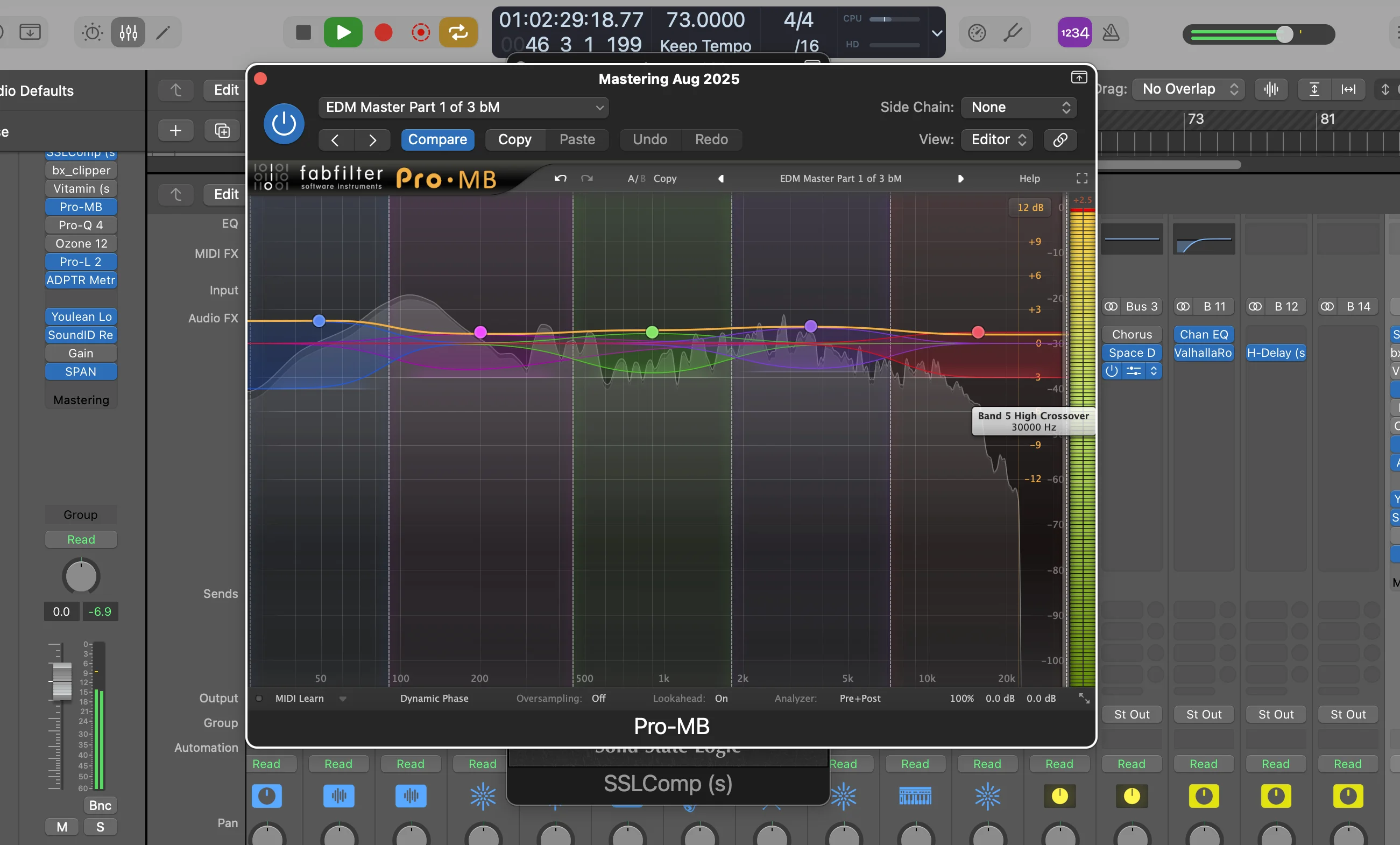
GarageBand has limitations compared to Logic Pro, so some Logic-only features or third-party plugin settings may not load — but anything GarageBand supports should transfer cleanly.
Troubleshooting (if your preset isn’t showing)
If your vocal presets don’t appear:
- restart GarageBand (it loads new patches on startup)
- confirm the files are inside
.../Patches/Audio/ - avoid burying presets inside a bunch of nested folders
- make sure the preset is a GarageBand/Logic patch format
- check User Patches in the Library panel
FAQ
Where do I install vocal presets in GarageBand?
In:
Users → [Your Username] → Music → Audio Music Apps → Patches → Audio
Are GarageBand presets the same as Logic Pro presets?
Yes — same patch system, but GarageBand exposes fewer parameters/features.
Why aren’t my presets showing up?
Usually because GarageBand needs a restart or the presets were placed in the wrong folder.
Can GarageBand load Logic Pro patches?
Yes — GarageBand can load Logic patches, but it will only use features it supports.
Can I use FL Studio or Ableton presets in GarageBand?
No — each DAW uses different preset formats. GarageBand/Logic patches are the ones that work here.
Final thoughts
Installing vocal presets in GarageBand is easy:
Audio Music Apps → Patches → Audio → drag presets in → restart GarageBand → load from the Library.
Once they’re installed, you can load a full vocal chain instantly and get cleaner, more professional vocals in seconds.
Want a professional starting point? My Vocal Magic presets give you ready-made vocal chains for any genre — EQ, compression, reverb, and more, all dialed in and ready to go.
Or grab my free vocal presets to try before you buy.
About Mattie
Mattie is a music producer, songwriter, and educator specializing in Logic Pro and vocal production. With over 10 years of experience in the music industry, he's helped thousands of artists transform their home studio recordings into professional-quality tracks.
As the founder of Music By Mattie, he creates tutorials, presets, and courses that simplify complex production techniques. His mission is to make professional music production accessible to everyone, regardless of budget or experience level.