Mix in 3D: A Better Way to Visualize Frequency, Width, and Depth
We hear in three dimensions — so why mix in two? Here’s a simple 3D mental model (and interactive graph + video) to help you balance frequency, panning...

Key Takeaways
- Think about mixing in three dimensions since your ears naturally hear in 3D space
- Use frequency, depth, and stereo width as your three mixing dimensions to visualize
- Place instruments strategically across all three dimensions to create better separation and balance
- Start with this 3D framework as a mental exercise, then apply it practically
- Your brain can estimate distance and direction from sound, so leverage this in mixing
About a year ago, I dipped my finger in the waters of 3D modeling.
Why?
To show my viewers the power of 3D visualization when it comes to balancing and mixing a song.
Sure, we could use a normal two-dimensional graph — but that downplays the power of the ear.
And who wants to downplay the all mighty ear?
Not me.
We hear in 3D (so we should mix in 3D)
The truth is: we hear things in three dimensions.
- We can tell if something is coming from behind us, in front of us, or above us
- We can estimate distance just by how something sounds
And if we can hear in three dimensions, then by god we should start thinking about mixing our audio in three dimensions.
It’s easier than it might sound.
The 3D graph
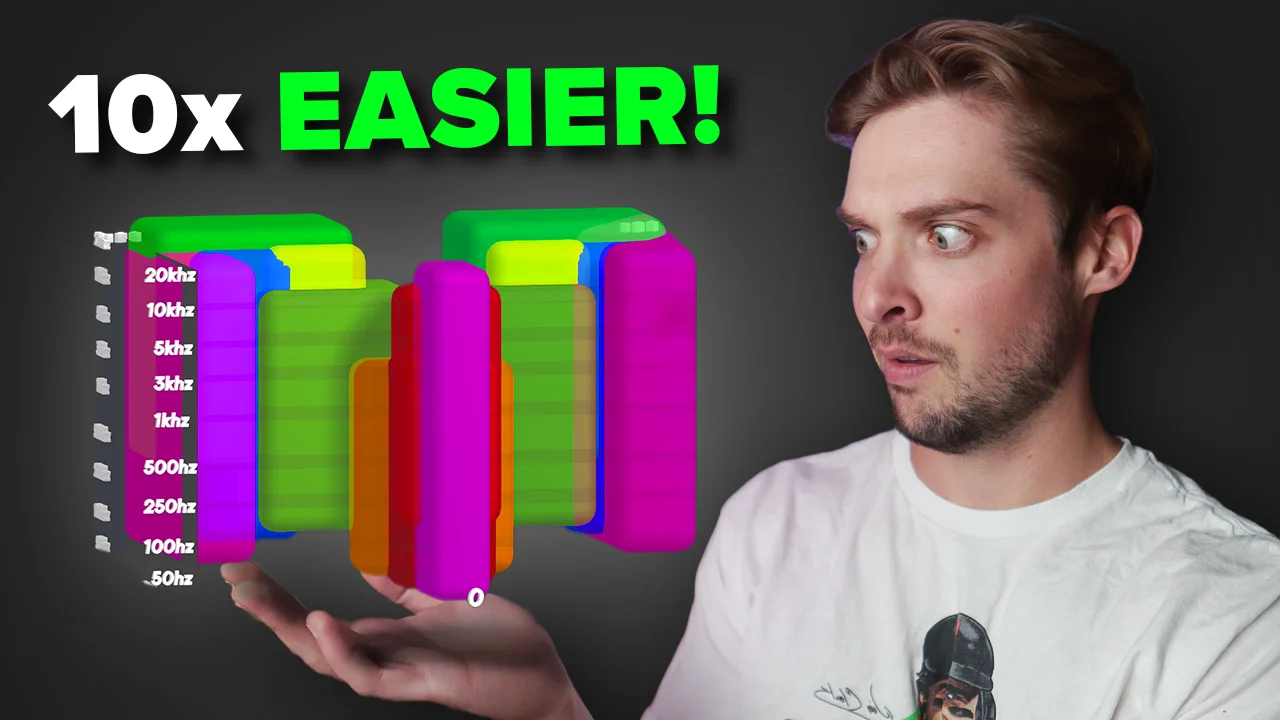
All you have to do is look at this complex 3D model I made.
(Please forgive my terrible 3D skills. I’m a music producer, not a graphic designer.)
Controls
- Command + scroll: zoom
- Shift + click: pan
- Option/Alt + click: 3D pan
What you’re looking at
At first glance it looks complicated, but it’s not that bad:
- One view represents frequency ranges (where instruments tend to live)
- One view represents depth (front-to-back)
- One view represents width (panning left-to-right)
Part of the Vocal Mixing series — For the full picture, read my complete vocal mixing guide.
See it in action
If you’re struggling to make out which axis is which, here’s a video walkthrough that brings the whole concept to life.
Ahhh. Now you’re getting it.
Final thought
This isn’t an end-all be-all to mixing — it’s a great starting point and an intellectual exercise to get your brain thinking in 3D.
Now go put these ideas into practice and get to making some music.
Need a solid starting point for your vocal mix? Grab my free vocal presets and see how far a great chain can take you.
About Mattie
Mattie is a music producer, songwriter, and educator specializing in Logic Pro and vocal production. With over 10 years of experience in the music industry, he's helped thousands of artists transform their home studio recordings into professional-quality tracks.
As the founder of Music By Mattie, he creates tutorials, presets, and courses that simplify complex production techniques. His mission is to make professional music production accessible to everyone, regardless of budget or experience level.