How to Master With Stock Plugins in Logic Pro
In this video, we'll show you how to get professional masters from your Logic Pro tracks using the Mastering Assistant combined with stock plugins. Together, th

Key Takeaways
- Create VCA tracks to manage mix levels without affecting plugin processing
- Use -12 dBFS headroom before mastering to avoid clipping and distortion
- Target -8 to -9 LUFS for competitive pop/EDM masters on streaming platforms
- High-pass filter around 25Hz to remove muddy low-end rumble
- Combine Logic's Mastering Assistant with stock plugins for professional results
You want your tracks to sound like they’ve been kissed by a Grammy-winning engineer using only Logic Pro’s stock plugins and mastering assistant?
Yeah, me too. And guess what — it’s totally possible.
Today we’re diving into real mastering. Not the wave-a-magic-wand-and-pray kind, but the actual do-it-yourself approach that gets results. We’ll be using only Logic Pro’s Mastering Assistant and stock plugins to transform your mix into a competitive master.
I also made a full video on this…
All the ideas in this article come from the video below. If you don't feel like reading, well, I gotchu.
Seriously, if I’d known these techniques 10 years ago, my masters might not have sounded like a dying goat.
Before You Even Think About Mastering
Let’s get one thing crystal clear: your mix has to be solid first.
Mastering won’t fix a bad mix. It’s like putting lipstick on a pig — still a pig, just shinier.
Get the mix right before hopping into the mastering stage. No exceptions.
Also crucial? Headroom. Your track needs breathing room to avoid sounding like a distorted mess.
The Easy Way to Stop Clipping
If you’re already clipping or running into distortion problems on your stereo out bus, here’s a dead-simple fix using VCA tracks.
First, navigate to one of the loudest parts of your track and play it back. Check your stereo out bus levels.
If you’re sitting around -8 dB, perfect — you’ve got plenty of room. But if you’re hitting -0 or even clipping? That’s exactly where we don’t want to be.
Creating VCA Tracks
Here’s how to create VCA tracks that’ll save your mix:
- Select your tracks strategically — I like separating vocals from instruments, so select all your vocal tracks first by clicking and shift-clicking until you have all of them highlighted
- Press X to open the mixer
- Click “Options” then “Create new VCA for selected Channel strips”
- This populates a VCA section where you can assign tracks to different VCAs — I usually name one “Vox” and another “Instruments”
VCA tracks are game-changing because they let you adjust volume after the fader without affecting your plugin processing. All your mixing decisions stay intact — you’re just turning the final volume down.
If your mix is too hot, select both VCAs (shift-click to pair them) and pull them both down simultaneously.
Target around -12 dBFS — this is the sweet spot for your mix before mastering. Even up to -10 or -9 dBFS is totally fine. But if you’re sitting at -4 or -3 dBFS? Definitely turn it down.
Understanding Loudness (And Why It Matters)
Now that we’ve got headroom sorted, let’s add a metering plugin to monitor our loudness levels. This shows us what we’re hitting and whether we’ll be competitive with other songs on streaming platforms.
I recommend the Youlean Loudness Meter — it’s completely free and way better than Logic’s stock options. You can grab it from the link in my description.
LUFS: Your New Best Friend
LUFS (Loudness Units Full Scale) measures perceived loudness — and it’s absolutely essential for modern mastering.
Most streaming services recommend -14 LUFS as their standard. Anything above -14 LUFS that you upload to Spotify gets turned down by their algorithms automatically.
But here’s the thing — if you’re making pop or EDM, -14 LUFS might not be competitive enough.
I often push to -8 or -9 LUFS for these genres. Yeah, it gets turned down by Spotify later, but it gives you way more perceived loudness and competes better with other tracks on the platform.
It’s all about that competitive edge.
Logic Pro’s Mastering Assistant: Your Starting Point
Logic Pro’s Mastering Assistant is a fantastic tool for producers learning to master. But — and this is important — it’s not an end-all-be-all solution.
It won’t make your mixes sound like a professional mastered them. That’s where combining it with stock plugins comes in.
Getting Started with the Mastering Assistant
When you first open the Mastering Assistant, it analyzes your song and suggests moves based on what it hears.
Pick the loudest part of your song for analysis — this section gets hit hardest by mastering and has the most impact. There might be parts like verses that need different treatment, but we’re assuming your mix is consistent throughout.
The plugin automatically chooses EQ curves and gives you several character options:
- Clean
- Valve
- Punch
- Transparent
The Loudness Quirk You Need to Know
Here’s where things get weird with the Mastering Assistant’s loudness control.
The plugin defaults to around -14 LUFS when the loudness slider sits in the middle — optimized for streaming. But the numbering system is confusing as hell.
If you move the slider to +1, you’d expect maybe a 1 LUFS boost, right? Wrong. It might jump to -5 LUFS. Move it to -1 and instead of dropping 1 LUFS, you might hit -25 LUFS.
Ignore the numbers on the slider — watch your actual LUFS meter and adjust until you hit your target. For competitive pop/EDM, I’m usually aiming for that -8 to -9 LUFS range.
Adding Width (Carefully)
The Mastering Assistant includes a width control, but use it sparingly.
I prefer higher frequencies to be wider and bass frequencies to stay more mono — this keeps the low end powerful and focused. The Mastering Assistant doesn’t give you this level of control, so just add subtle width.
Too much width and you’ll lose that crucial middle power, making everything sound weird and disconnected.
Watch your correlation meter — you want to stay somewhere around the middle. -1 would be completely mono, +1 would be completely different in both speakers.
The EQ Section
The Mastering Assistant automatically identifies peaks and valleys in your song that Logic thinks should be boosted or cut.
It’s a three-band EQ (low, mid, high) that works on top of Logic’s AI analysis. You can boost those identified peaks and valleys or reduce them.
For the track I’m working on, I found the Punchy character sounded best. I took a little out of the mid-range, added some high-end, and slightly reduced some muddiness in the low-mids.
But this is where the Mastering Assistant shows its limitations — you can’t make broader, more nuanced moves.
Adding Stock Plugins for Professional Results
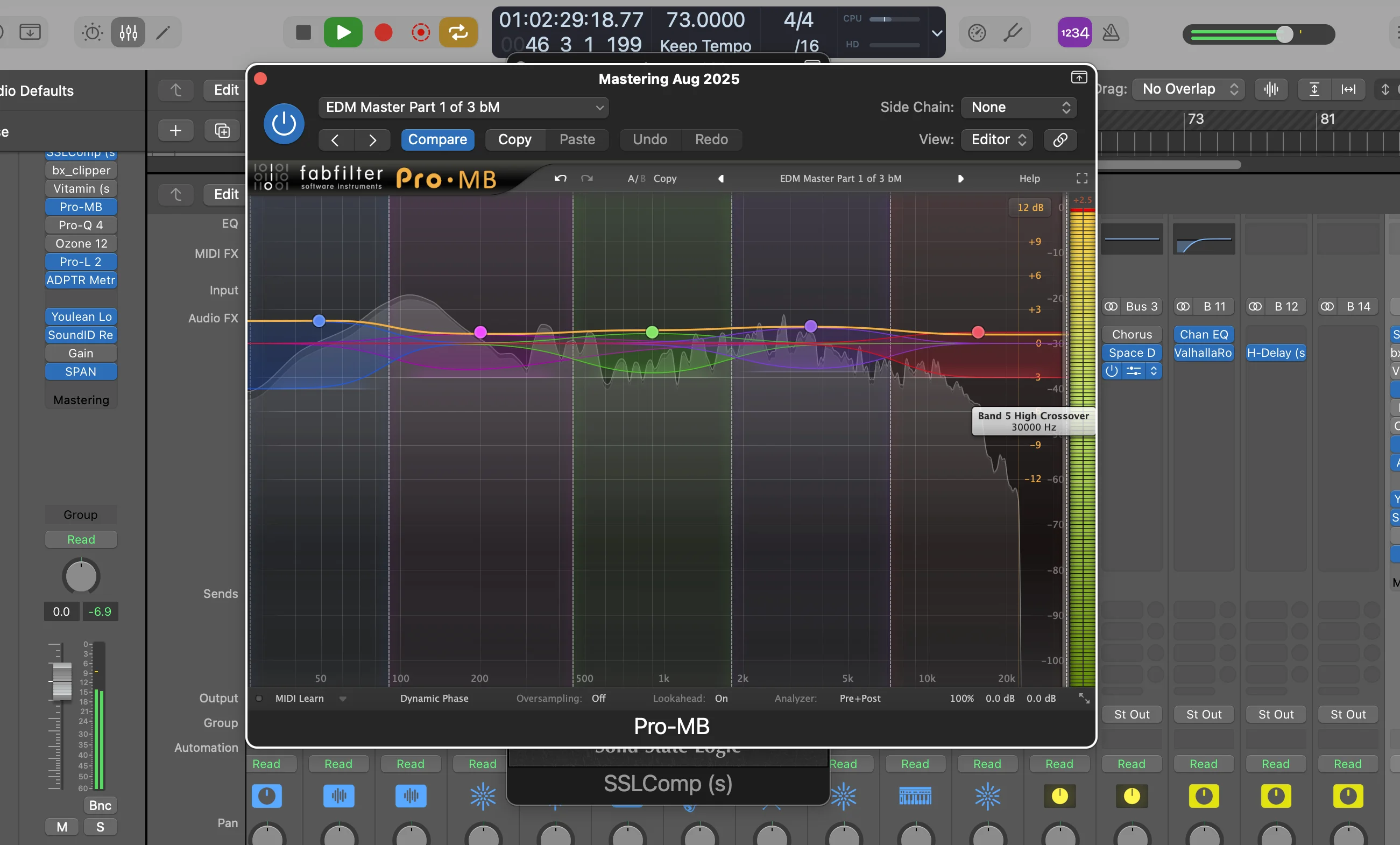
The Mastering Assistant is a great starting point, but stock plugins give you the control you need for truly professional masters.
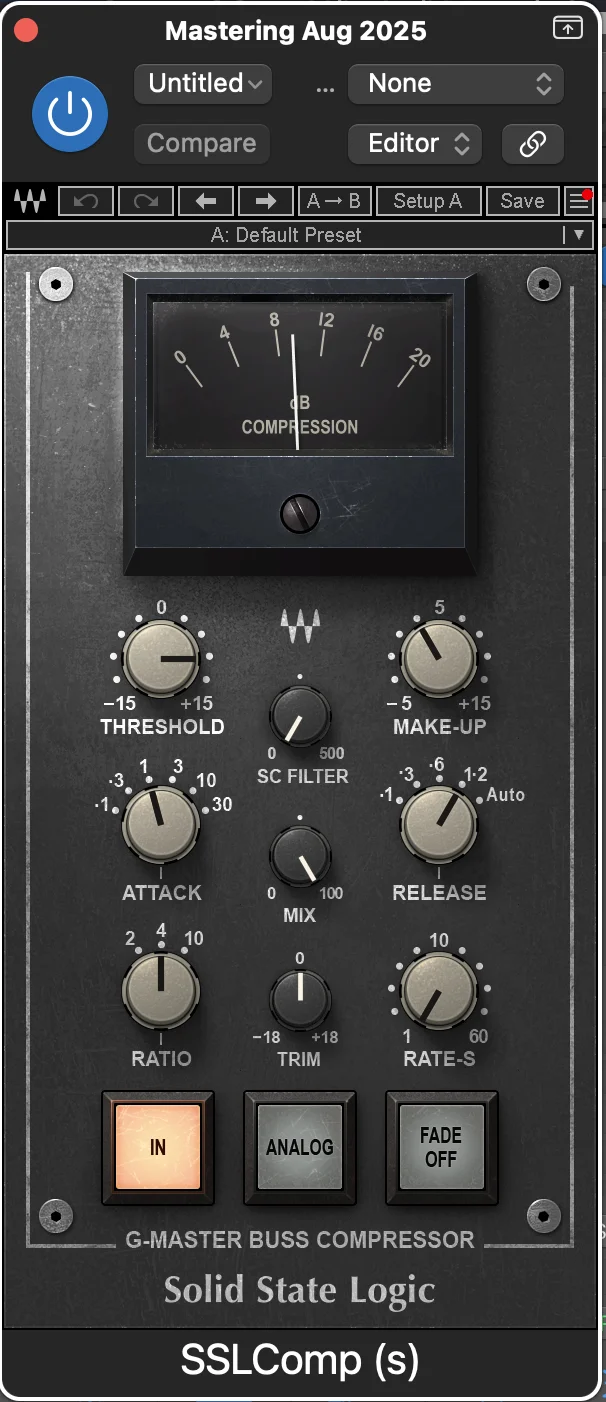
Here’s my chain and why each plugin matters:
Linear Phase EQ: Your Foundation
First up is a Linear Phase EQ (not the regular Channel EQ). You’ll find it under EQ > Linear Phase EQ.
The black background tells you it’s linear phase, which I find more transparent for mastering work.
The Essential High-Pass Move
My first move is always removing low-end rumble below 40Hz. This opens everything up and reduces muddiness.
I set the slope to 36 dB per octave for a steeper cut and slowly bring the frequency up until I hear it affecting the low end. For this track, around 25Hz was perfect.
There’s often low-end rumble below 40Hz that adds nothing but mud to your song. We don’t need that ultra-low content — it only makes everything messier.
Broad EQ Strokes
With the Linear Phase EQ, I can make broader strokes than the Mastering Assistant’s three-band limitation.
I might add around 600Hz with a very broad curve (maybe 1dB) and boost some high-end for brightness. Notice I’m using gentle, broad moves — mastering is about subtlety.
Exciter: Better High-End Control
The Mastering Assistant has a one-button exciter, but Logic’s stock Exciter plugin gives you way more control.
I typically set it around 10kHz and above to add harmonic excitement to the high end. You can also use it lower — around 6kHz — to bring out vocal characteristics.
The different color options give you various harmonic flavors. Experiment and trust your ears.
Advanced Technique: Hard Clipping
If you need more volume and transparency, try hard clipping with Logic’s Bitcrusher.
Hard clipping is when waveform peaks literally get cut off at the top. Unlike soft clipping (which sounds more like classic distortion), hard clipping is surprisingly transparent.
Set the downsampling to 1 and resolution to 24-bit, then gently raise the drive. Use this sparingly — it’s powerful.
Fat Effects: Saturation and Enhancement
Fat Effects comes loaded with plugins you probably don’t want, so choose your own.
I add:
- Gentle tape saturation via the Distortion section (keep it subtle)
- Bass enhancer set to a lower frequency to add harmonics that make the bass more noticeable without just turning it up
The key word here is gentle. We’re adding character, not obvious processing.
Avoid These Common Mastering Problems
Here are the mistakes I see constantly:
Over-Compression Disease
Just because you can crank the loudness doesn’t mean you should.
Push too hard and watch your dynamic range fall apart. You’ll introduce distortion and the low end starts sounding terrible. That’s a hard no.
Under-Compression Syndrome
On the flip side, not pushing hard enough leaves you uncompetitive.
-14 LUFS might work for classical music where you want huge dynamic range. For pop or EDM? You might need that -8 LUFS compressed sound to compete.
Know your genre — different styles have different loudness expectations.
Before and After: The Real Test
Let me walk you through the difference these stock plugins make.
With just the Mastering Assistant, the track sounds decent. But add the Linear Phase EQ high-pass, the Exciter for high-end sparkle, and gentle saturation from Fat Effects?
The bass bumps harder. The high end sparkles more. Everything sounds cleaner and more transparent.
The three moves I made:
- High-pass filtering to remove mud
- Exciter for high-end presence
- Gentle saturation for character
No changes to the Mastering Assistant settings, but the track sounds significantly more professional.
Genre Considerations Matter
Your target LUFS depends entirely on your genre:
Classical/Acoustic: -16 to -14 LUFS for maximum dynamic range Pop/EDM: -9 to -8 LUFS for competitive loudness Hip-Hop: Often -8 to -6 LUFS depending on the style
Don’t just copy what works for other genres — understand your musical context.
When You Don’t Need the Adaptive Limiter
Logic Pro also includes an Adaptive Limiter for more traditional limiting approaches.
But since we’re using the Mastering Assistant, you probably won’t need it. The Mastering Assistant’s built-in limiting is solid enough for most applications.
If you want more granular control over your limiting characteristics, then dive into the Adaptive Limiter. But for this approach, the Mastering Assistant handles it well.
The Professional Approach
Remember: mastering is about balance and subtlety.
You’re enhancing what’s already there, not completely altering the character of your mix. Every move should have a clear purpose and improve the overall listening experience.
Trust your ears — they’re smarter than any plugin or preset. The tools are just tools. Your judgment and taste make the difference between amateur and professional results.
Most importantly? Experiment, listen, and learn. That’s how you develop the instincts for professional-sounding masters.
Your Mastering Workflow
Here’s the order I recommend:
- Check your mix levels — ensure -12 to -9 dBFS headroom using VCA tracks if needed
- Add loudness metering — Youlean Loudness Meter is your friend
- Set up Mastering Assistant — pick character, adjust loudness to target LUFS
- Add Linear Phase EQ — high-pass around 25-40Hz, make broad corrective moves
- Insert Exciter — add high-end sparkle around 10kHz
- Apply gentle saturation — Fat Effects for subtle tape character and bass enhancement
- A/B test everything — compare before and after each processor
This workflow consistently delivers competitive, professional-sounding masters using only what Logic Pro gives you out of the box.
With Logic Pro’s Mastering Assistant and stock plugins, you’ve got a legitimate powerhouse at your fingertips. The key is understanding how each tool works and combining them strategically rather than relying on any single solution.
Your tracks can absolutely compete with commercial releases — you just need to know which buttons to push and when to push them.
Want a professional starting point? My Vocal Magic presets give you ready-made vocal chains for any genre — EQ, compression, reverb, and more, all dialed in and ready to go.
Or grab my free vocal presets to try before you buy.
About Mattie
Mattie is a music producer, songwriter, and educator specializing in Logic Pro and vocal production. With over 10 years of experience in the music industry, he's helped thousands of artists transform their home studio recordings into professional-quality tracks.
As the founder of Music By Mattie, he creates tutorials, presets, and courses that simplify complex production techniques. His mission is to make professional music production accessible to everyone, regardless of budget or experience level.