 MBM Audio Plugin
magic.CURVE
Intelligent Vocal EQ
Matches your vocal’s tonal balance toward real hit vocals — measured from thousands of Billboard hits, in one knob.
What It Is
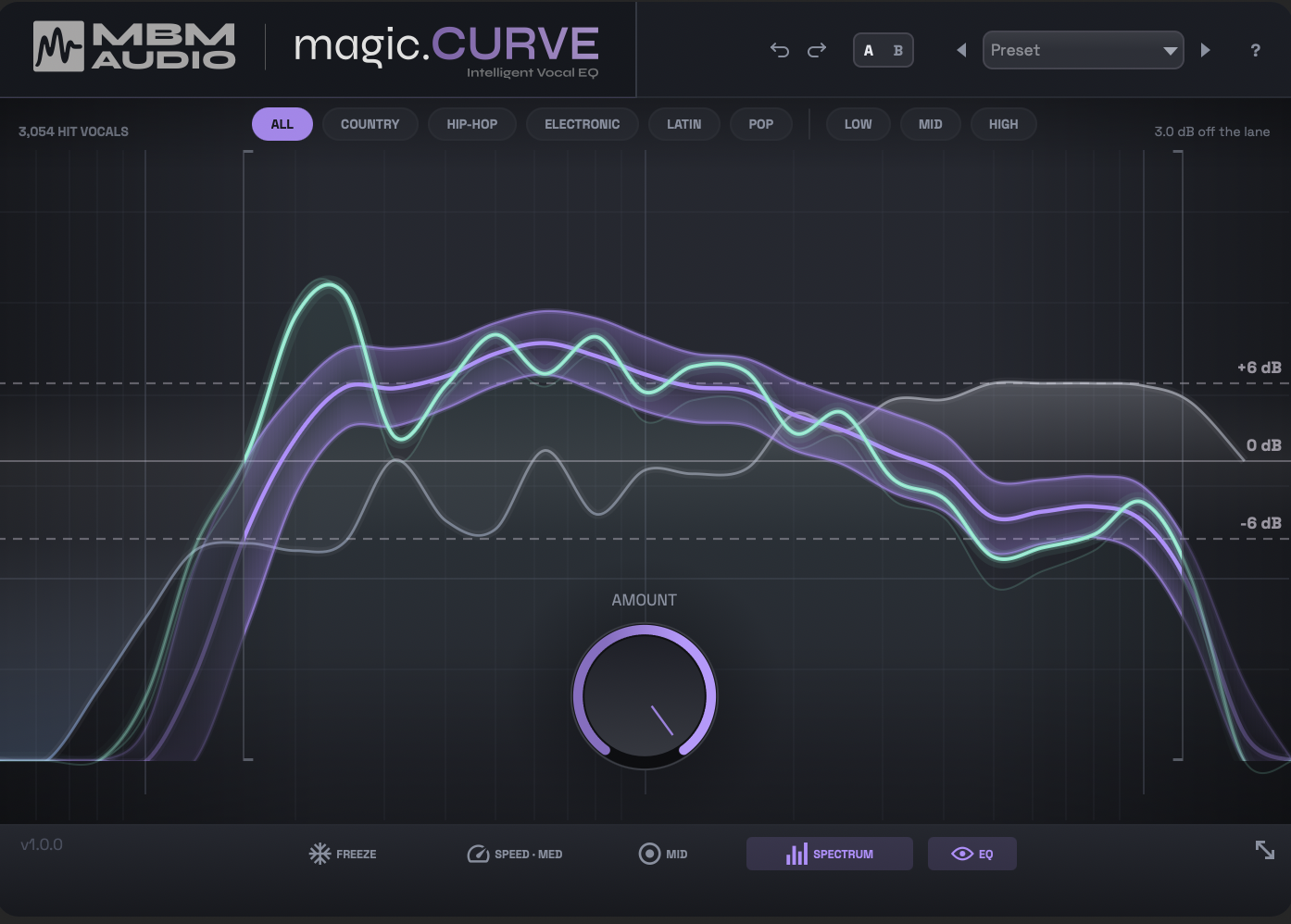
magic.CURVE is an automatic vocal EQ. It listens to your vocal’s long-term spectrum and gently shapes it toward a target lane — the measured tonal balance of real hit vocals in a genre or voice type.
You pick a target and turn one knob. The display shows your vocal (the mint line) against the hit pocket (the purple band) so you can see exactly how close you are.
The lanes are built from 3,054 Billboard hit vocals (separated vocal stems, measured and bias-corrected, 1990–2025).
What It Does (and Doesn’t)
✓ It does
- Match your tonal balance toward hit vocals, automatically
- Follow your vocal live and adapt as you sing
- Work across any mic — normalize a dark, harsh, or thin source toward the target
- Stay natural (tilt-first, gentle on detail) and zero-latency
— It doesn’t
- Compress or level dynamics (that’s magic.RIDE’s job)
- De-ess, or remove reverb / room sound
- Correct pitch
- “Make you sound like the record” — it matches tone, not the whole production
Quick Start
- 1
Insert on your vocal
Add magic.CURVE on your lead vocal track — after any cleanup, before heavy compression.
- 2
Pick a target
Choose a genre chip (or your singer’s voice type). Leave it on All Hits if you’re not sure.
- 3
Play your vocal
Your mint line shows your tone; the purple band is where hit vocals sit. Watch how they compare.
- 4
Turn AMOUNT
Raise AMOUNT (start ~50%) until your line settles into the band. A/B against bypass — you’re done.
The One Knob: AMOUNT
AMOUNT
AMOUNT is how far CURVE moves your vocal toward the target. At 0% it’s untouched; at 100% it pushes the full match (still capped by the depth limits). It’s deliberately restrained — the engine matches the broad tonal tilt confidently and treats fine detail gently, so even higher settings stay musical.
STARTING POINTS
50% is a good start for most vocals. Let your ears and the mint-line-vs-pocket picture guide the rest.
Choosing a Target
Genre
All Hits · Country · Hip-Hop · Electronic · Latin · Pop
The tonal balance of hit vocals in that style. “All Hits” is the broad average across everything.
Voice type
Low · Mid · High
Your singer’s register (a relative third, not absolute pitch). Best on sung vocals. Picking one clears the genre, and vice-versa — one target at a time.
Hover a chip to preview that lane on the display before you commit; click to select.
Reading the Display
Purple band — the hit pocket
Where hit vocals actually sit at each frequency (their middle 50%). Aim to land your line inside it.
Mint line — you
Your vocal after correction (input + what CURVE is adding). When it sits in the band, you’re matched.
Spectrum (behind)
The live analyzer — a fast view of your vocal in real time. Toggle with SPECTRUM.
EQ ghost
The actual correction being applied — soft white boosts above the centre line, faint-blue cuts below. Toggle with EQ.
When it’s quiet, the display fades to an inviting idle state. Play your vocal and it comes alive.
Low / High Edge
Low Edge (~100 Hz, Auto)
An always-on high-pass that also marks where correction begins. By default it auto-follows your vocal’s low edge. Drag the left bracket to set it manually; double-click to return to Auto; drag it to the floor to bypass the high-pass entirely.
High Edge (~12 kHz)
Marks the top of the correction range. Drag the right bracket in to focus correction lower (e.g. leave the air untouched), or out toward 20 kHz to include the very top.
Tip: pushing the low edge up past the high-pass cap isolates correction to just the high band — that’s how the “Air Only” preset works.
Toggles & Speed
SPECTRUM
Shows the live spectrum analyzer behind the curve — a fast, SPAN-style view of your vocal in real time. Turn off for a calmer display.
EQ
Shows the applied-correction “ghost” — the actual EQ move CURVE is making (soft white boosts above the centre line, faint-blue cuts below). The draggable depth-limit lines live here too.
FREEZE
Holds the analyzed curve where it is — correction stops adapting. Useful to lock in a match from one phrase and stop it chasing.
SPEED
How fast the matched curve adapts: Slow (≈8 s), Med (≈4 s), Fast (≈1.5 s). Slower = a calmer, more stable tonal average; faster = more reactive.
MID
Process the centre only and leave the stereo sides untouched (stereo tracks only). Keeps width while matching the lead.
Depth Limits (the EQ lines)
With EQ on, the ghost shows two draggable limit lines — the most you’ll let CURVE boost (above) and cut (below). Default is ±6 dB; drag up to ±9.
- Pull the boost line to 0 → cut-only (only removes what’s over the hits)
- Pull the cut line to 0 → boost-only (only adds what’s under the hits)
- Double-click a line to reset it
Most people never touch these — but they’re how the cut-only / boost-only presets get their character.
Presets
Named for the problem, not the genre. Pick the one that sounds like your issue, then nudge AMOUNT.
Match
The honest baseline — All Hits, 50%, full range. Your everyday starting point.
Dull / Dark Mic
Boost-only. Lifts presence and air where your vocal sits under the hits — for dark or muffled mics.
Harsh / Bright
Cut-only. Tames the 2–5 kHz harshness common on cheap or bright mics.
Boomy / Muddy
Low band, cut-only. Clears low-mid build-up without touching the top.
Thin / Small
Body, boost-only. Adds low-mid weight to thin, small-sounding vocals.
Air Only
Shapes just the top end (above ~4 kHz) — gentle sheen without thinning the body.
Warmth Only
Shapes just the low end — warmth and weight, nothing above.
Quick / Reactive
Match, but Speed = Fast — for vocals whose tone shifts a lot phrase to phrase.
Workflow Examples
Everyday tonal polish
- 1 Insert magic.CURVE on your lead vocal
- 2 Leave the target on All Hits (or pick your genre)
- 3 Play the vocal — watch your mint line move toward the purple hit band
- 4 Turn AMOUNT until it sits in the band (start around 50%)
- 5 A/B against bypass to confirm it’s better, not just different
Fixing a problem mic
- 1 Pick the preset that names your problem (Dull / Harsh / Boomy / Thin)
- 2 Play the vocal and nudge AMOUNT to taste
- 3 The preset has already set cut-only / boost-only and the right band
- 4 Switch the target to your genre if you want it style-specific
Match a singer to their register
- 1 Pick the voice type — Low, Mid, or High — that matches your singer
- 2 Play a sung section (not rap) so the register target fits
- 3 Set AMOUNT to taste; layer a genre on top if you like
- 4 Use Speed = Slow for a stable average on sustained singing
Tips
Getting a good match
- Record around -18 dB and reasonably clean — the analyzer works best on real vocal energy
- Start at AMOUNT 50% and move from there; it’s tuned to stay natural
- The mint line is you; the purple band is the hit pocket — aim to land your line in the band
Keep it natural
- CURVE is restrained on purpose (tilt-first, gentle on fine detail) — you usually don’t need much
- If a band is already in the pocket, leave it; don’t chase a perfectly flat match
- Use the depth limits (drag the EQ lines) if you want to cap how far it can push
Where it fits
- Use it like an automatic EQ: after any cleanup/de-noise, before heavy compression or effects
- Or as a finishing tonal polish on a near-final vocal
- It’s zero-latency, so no delay compensation to worry about
FAQ
System Requirements
macOS
- macOS 11 (Big Sur) or later
- AU (Audio Unit), VST3, AAX (Pro Tools)
- Intel & Apple Silicon (Universal Binary)
Windows
- Windows 10 or later
- VST3, AAX (Pro Tools)
- 64-bit (x86_64)
Compatible DAWs
Need Help?
Having trouble with magic.CURVE? Reach out and I’ll help you get it sorted.
Contact Support